Original: $700.38
-70%$700.38
$210.11The Story
Elvid RVM-5P-HDR Overview
- 1 Description
- 2 Function Buttons
- 3 Touchscreen
- 4 LUTs
- 5 Functions
- 6 Swing Arm
- 7 Camera Control
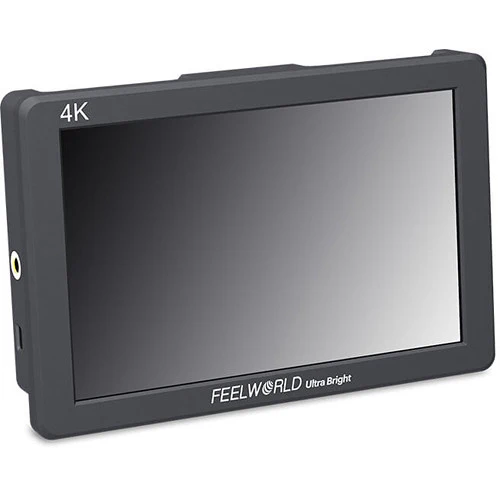
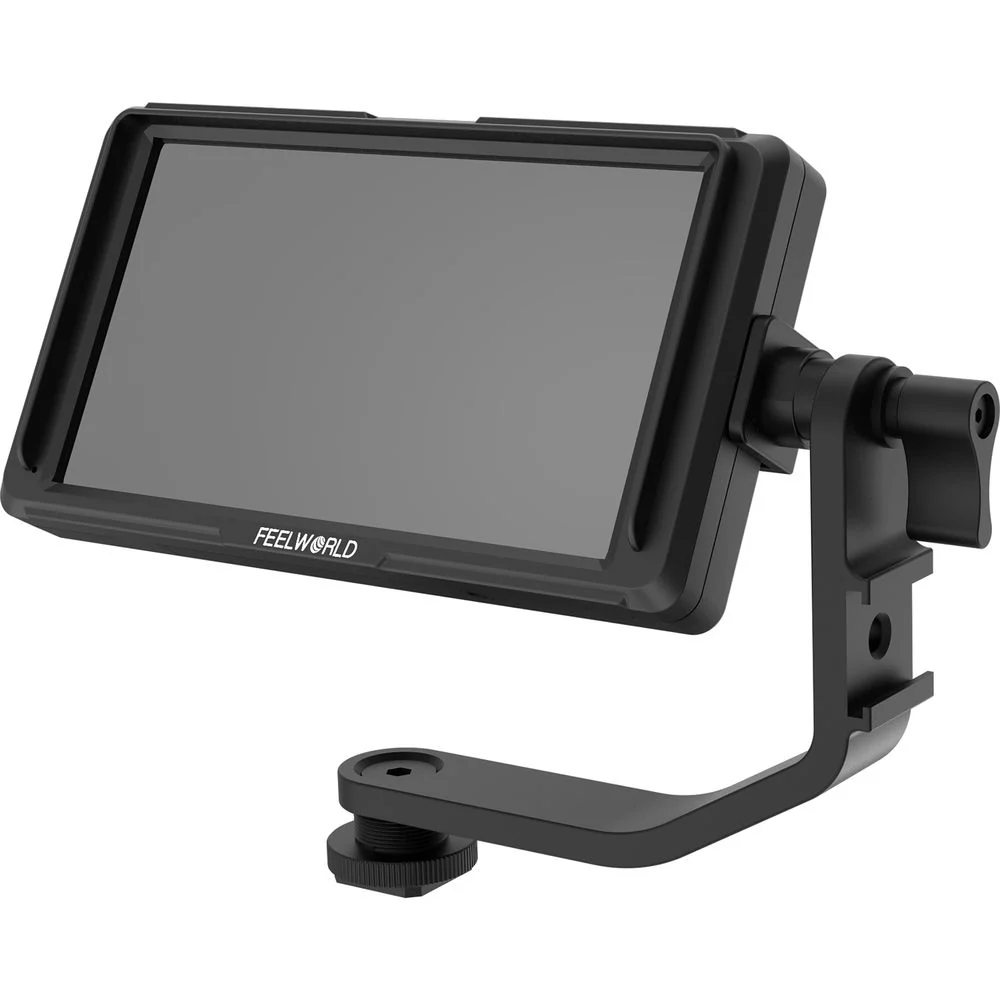
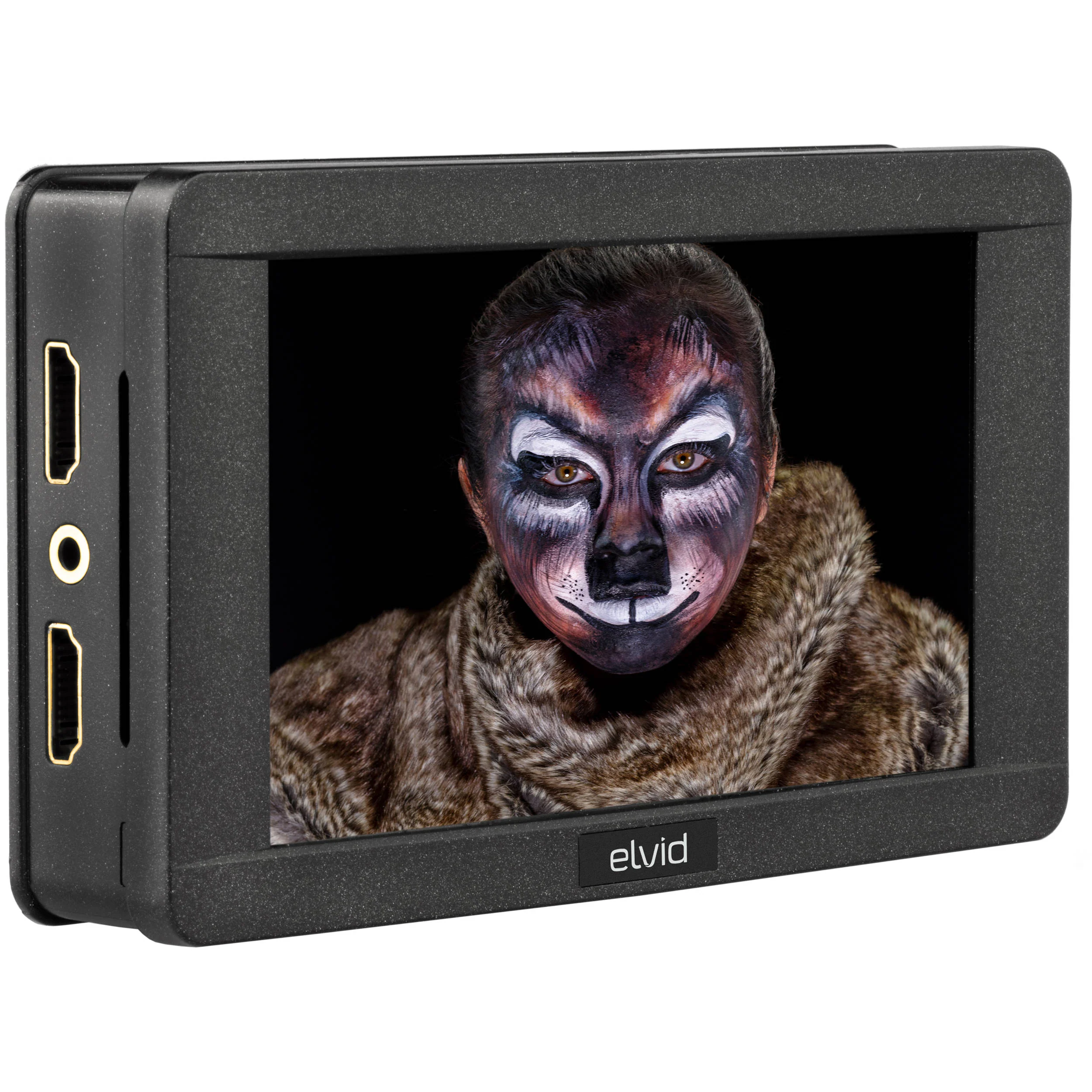
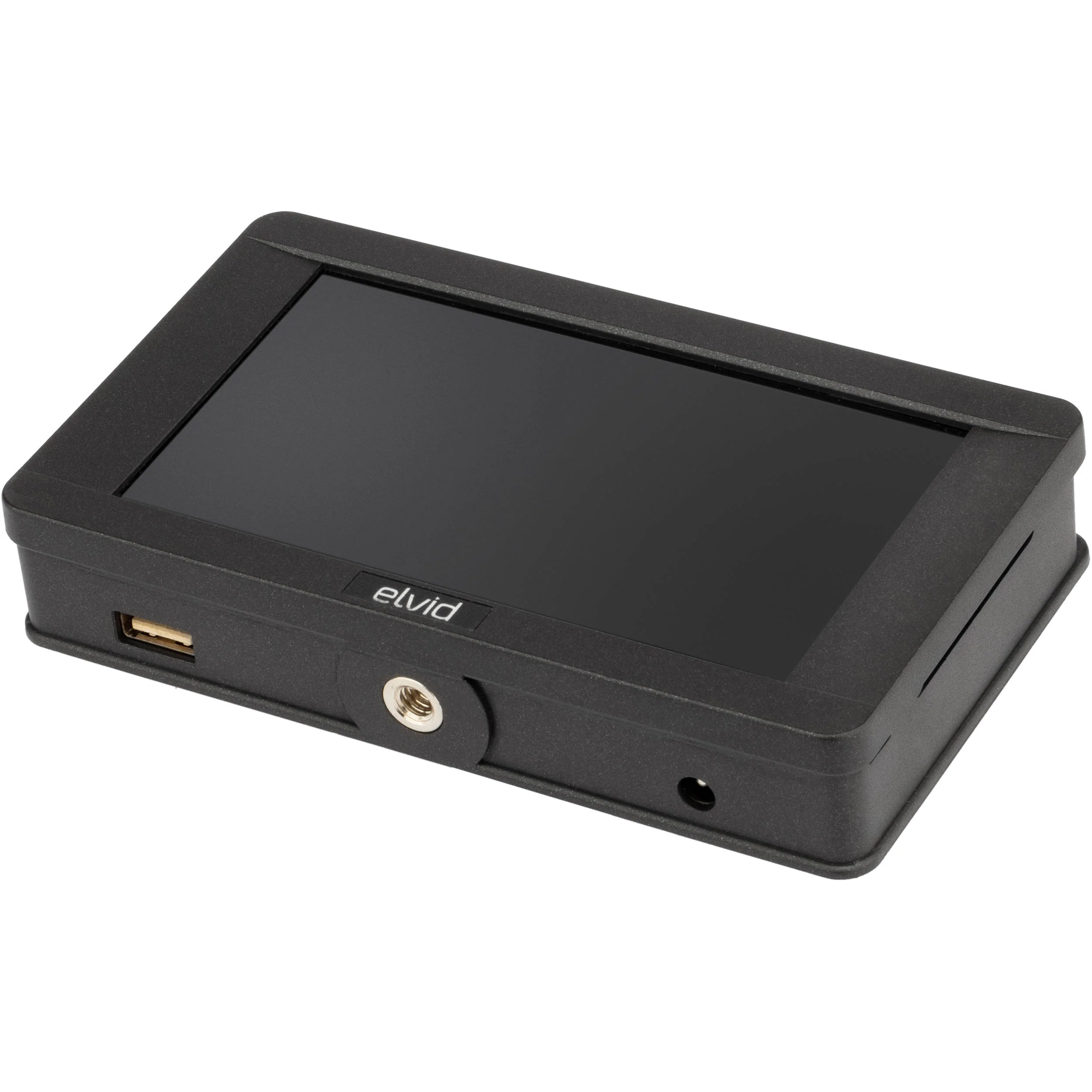
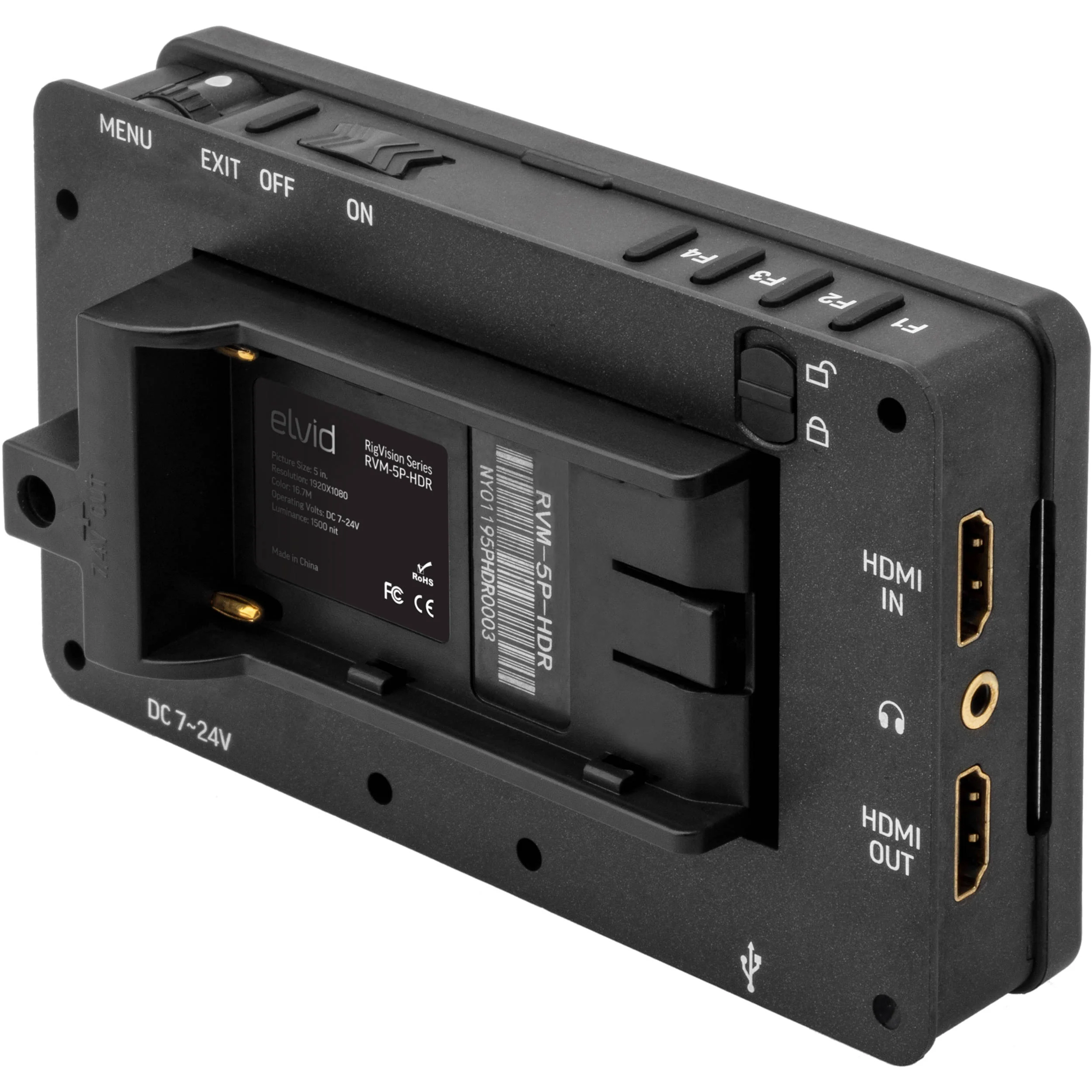
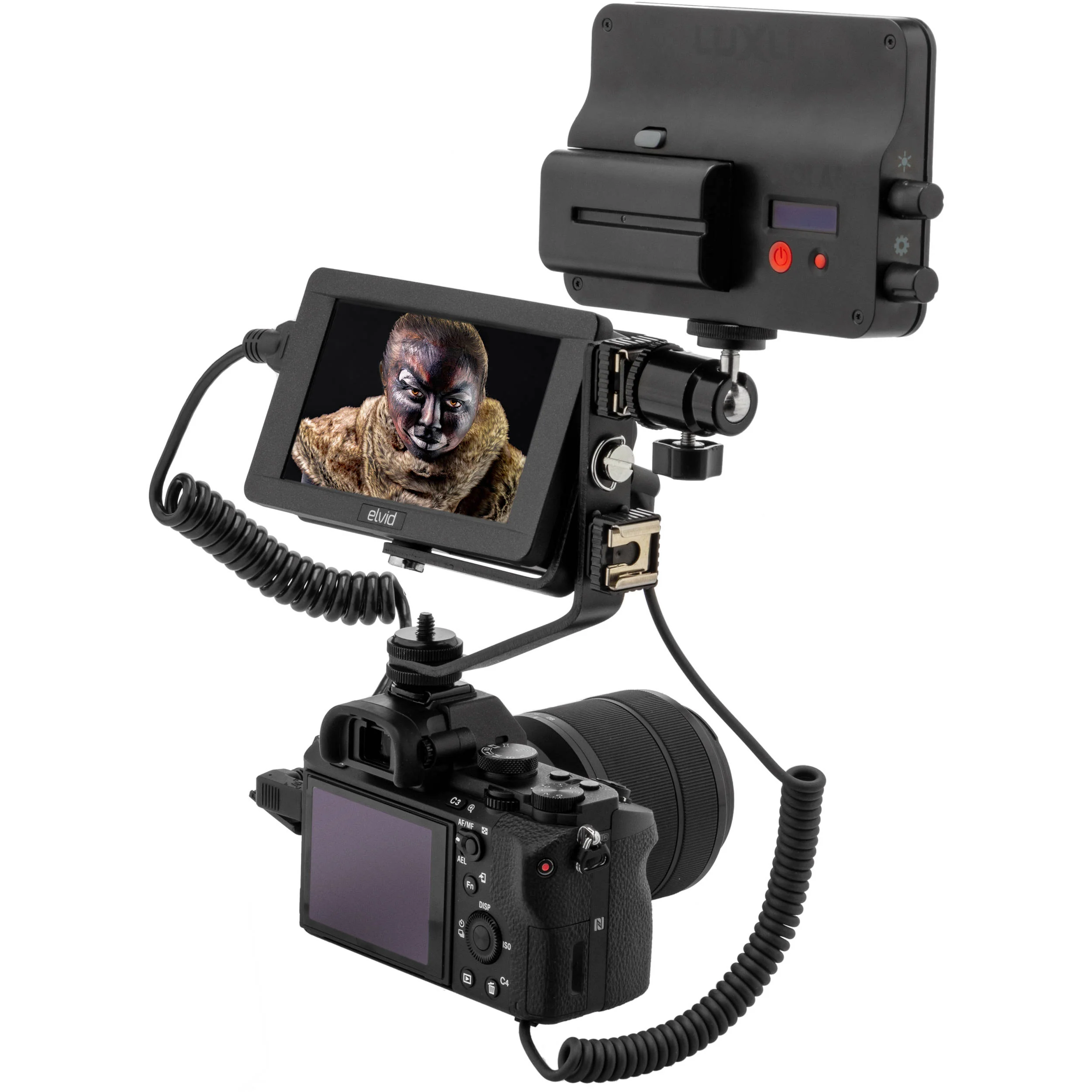
Compact, lightweight, and well thought out for on-set work, the Elvid 5" RigVision HDR On-Camera Touchscreen Monitor can handle DCI and UHD 4K as well as 1080p, NTSC, and PAL, via its HDMI input. The monitor scales input video to its 1920 x 1080 IPS screen which provides you with a 1000:1 contrast ratio, 1500 cd/m² maximum brightness, and a touchscreen interface. A loop-though HDMI output means that whatever signal you input into the monitor is the same signal you get out, without any modifications or adjustments by the many viewing tools the monitor offers.
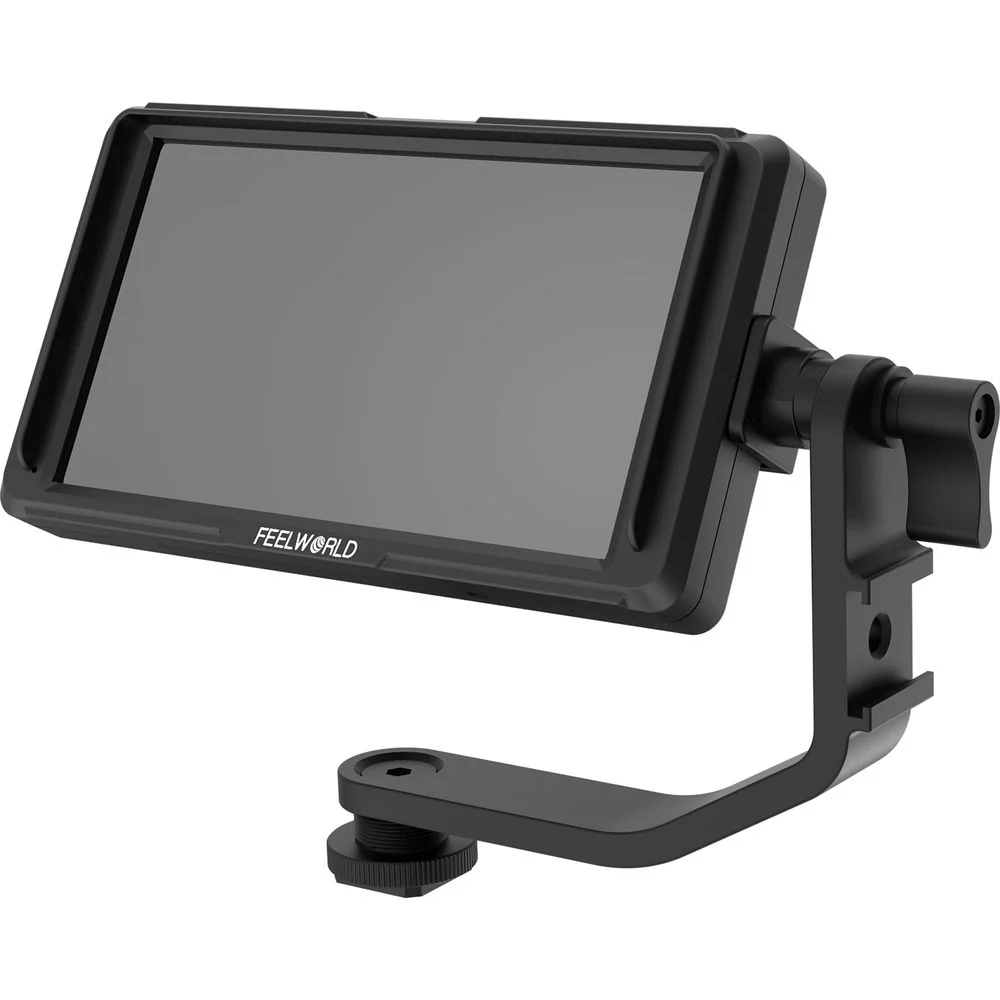
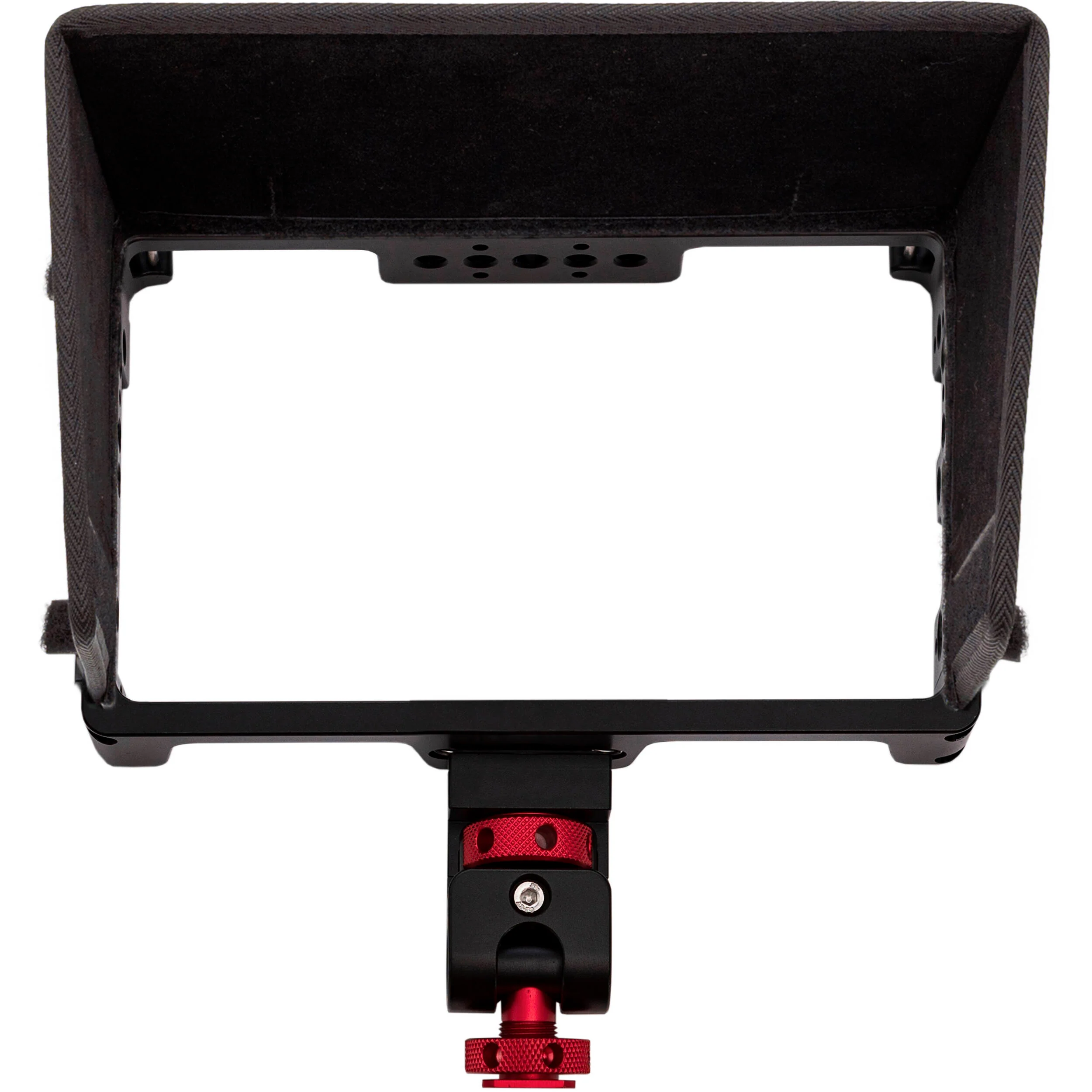
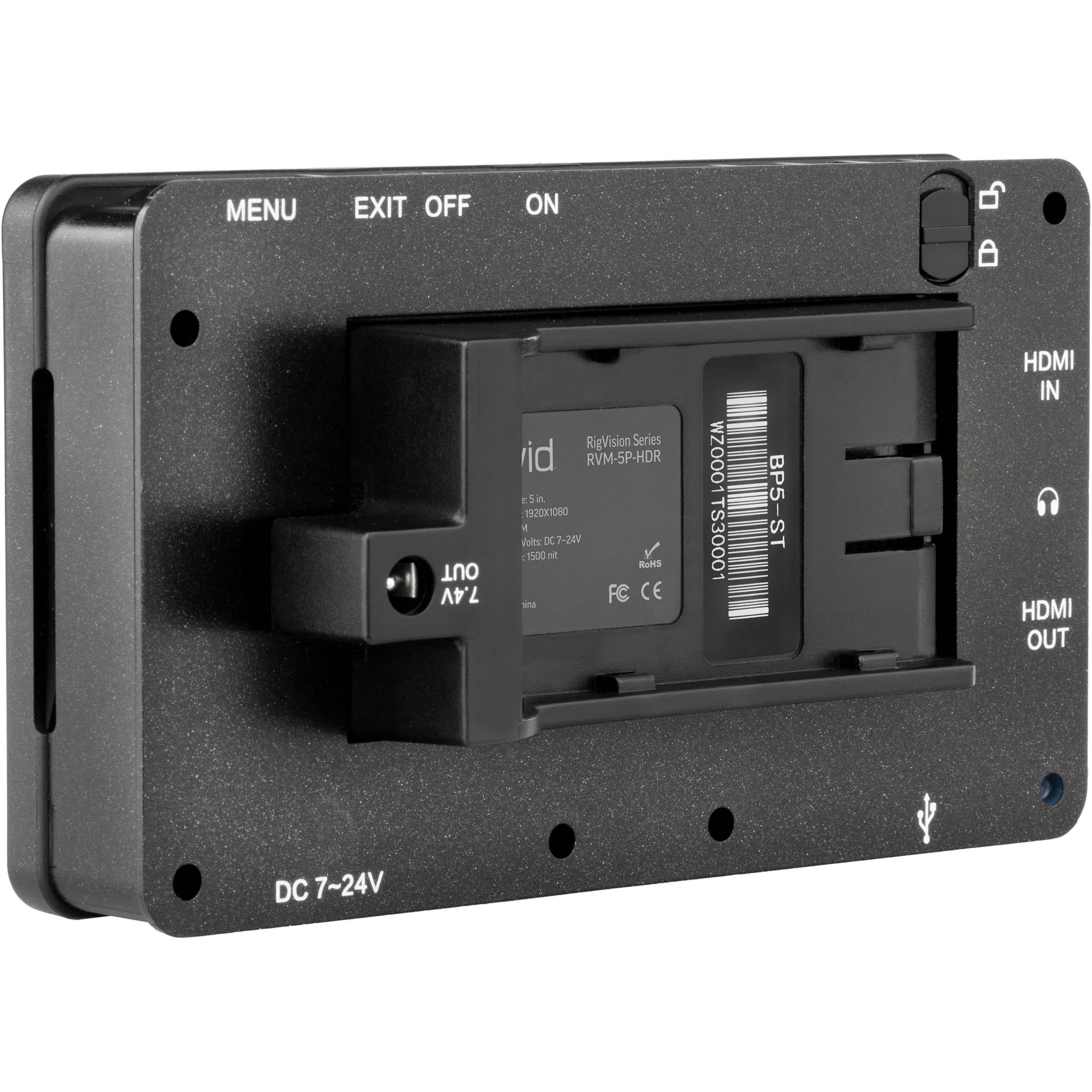
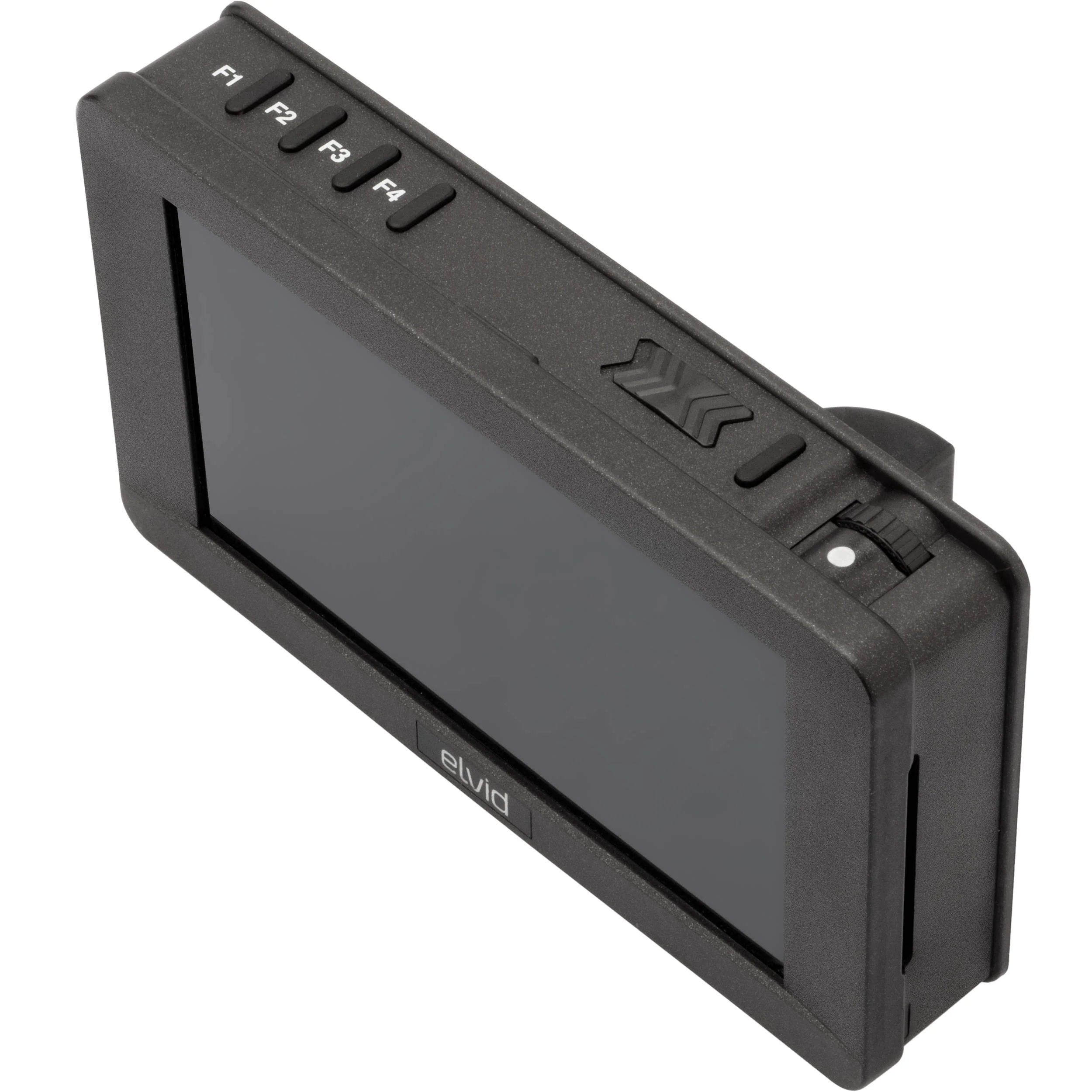
A physical sliding power switch and four programmable function buttons sit along the top of the monitor, as well as a scroll wheel with push-select. Whether in-line with a recorder or just for monitoring purposes, the advantage of 4K support does not end there. Focusing aids benefit greatly from the added image fidelity. Legacy workflows are still supported, with NTSC and PAL signals supported over HDMI. An included swing arm features a friction pivot that allows you to reposition the monitor without having to loosen and relock the mechanism. The built-in USB port allows for firmware updates and LUT import, and the included USB flash drive contains three LUTs.
Function Buttons
- F1 - Audio meters: Places an audio meter on the screen to monitor the level of incoming audio.
- F2 - Peaking: Adds a selectable color outline to any part of the image that is in focus.
- F3 - False color: Replaces the true colors of the image with a standard set of colors.
- F4 - HDR (HLG): Uses the display's luminance range to correctly display an incoming HLG signal. This function can be used in tandem with any applied LUT.
Touchscreen
LUTs
Functions
- Adjusts the aspect ratio of the incoming video signal and how it is displayed on screen. Select between Off (default), 80%, 90%, 15:9,1.33:1, 1.5:1, 1.85:1, 2:1, 2.35:1, and Custom.
- (On, Off) When turned on, the areas outside the guide are dimmed. The default setting is On.
- (On, Off) Puts a crosshair at the center of the screen. The default setting is Off.
- (Off, 1-10) Creates grids on screen with 1 to 10 subdivisions. The default setting is Off. Pressing the Exit button will disable any enabled guides, one at a time.
- Adjusts the monitor's brightness value from 0 to 100. The default setting is 50.
- Adjusts the contrast value of the on-screen image from 0 to 100. The default setting is 50.
- Adjusts the chroma value of the on-screen image. The default setting is 50.
- Adjusts the value of fine detail on the picture from 1 to 100 in increments of 10. The default setting is 30.
- Adjusts the tint value from 0 to 100. The default setting is 50.
- Presets are 5600, 6500 (default), 7500, 9300, and Manual. When User mode is selected, the values of red, green, and blue can be set manually from 0 to 255. Red, green, and blue are preset to 128.
- Adjusts the intensity of the backlight. Options are Low, Middle, and High (default).
- Adjusts the aspect ratio of the incoming video signal and how it is displayed on screen. Options are User, 16:9 (default), 15:9, 1.33:1, 1.5:1,1.85:1, 2:1, and 2.35:1. In User mode, height and width can be adjusted from 50 to 100. The default setting is 100.
- You can set the on-screen language to English (default) or Chinese.
- Set the length of time the on-screen menu is displayed. Select 5, 10 (default), 15, 20, 25, or 30 seconds, or Off (the menu will be displayed until the user exits the menu).
- Set the menu's level of opacity. You can adjust this setting to Low (default), Middle, High, or Off, with High being the most transparent. The default setting is Low, which makes the menu opaque.
- Recalls monitor settings.
- Resets the monitor to the factory default settings and removes any loaded LUTs.
- Displays Flip mode controls the orientation of the on-screen image. Flip the screen vertically or horizontally with the H Flip and V Flip options.
- OSD Flip mode controls the orientation of the on-screen display. Flip the menu vertically or horizontally with the H Flip and V Flip options.
- Places an icon in the upper-left corner of the screen that displays the remaining battery voltage. Select On (default) or Off.
- Sets the level of the internal cooling fan. Options are High, Medium (default), and Low.
- Turns the touch control feature on or off.
Swing Arm
Camera Control
In the Box
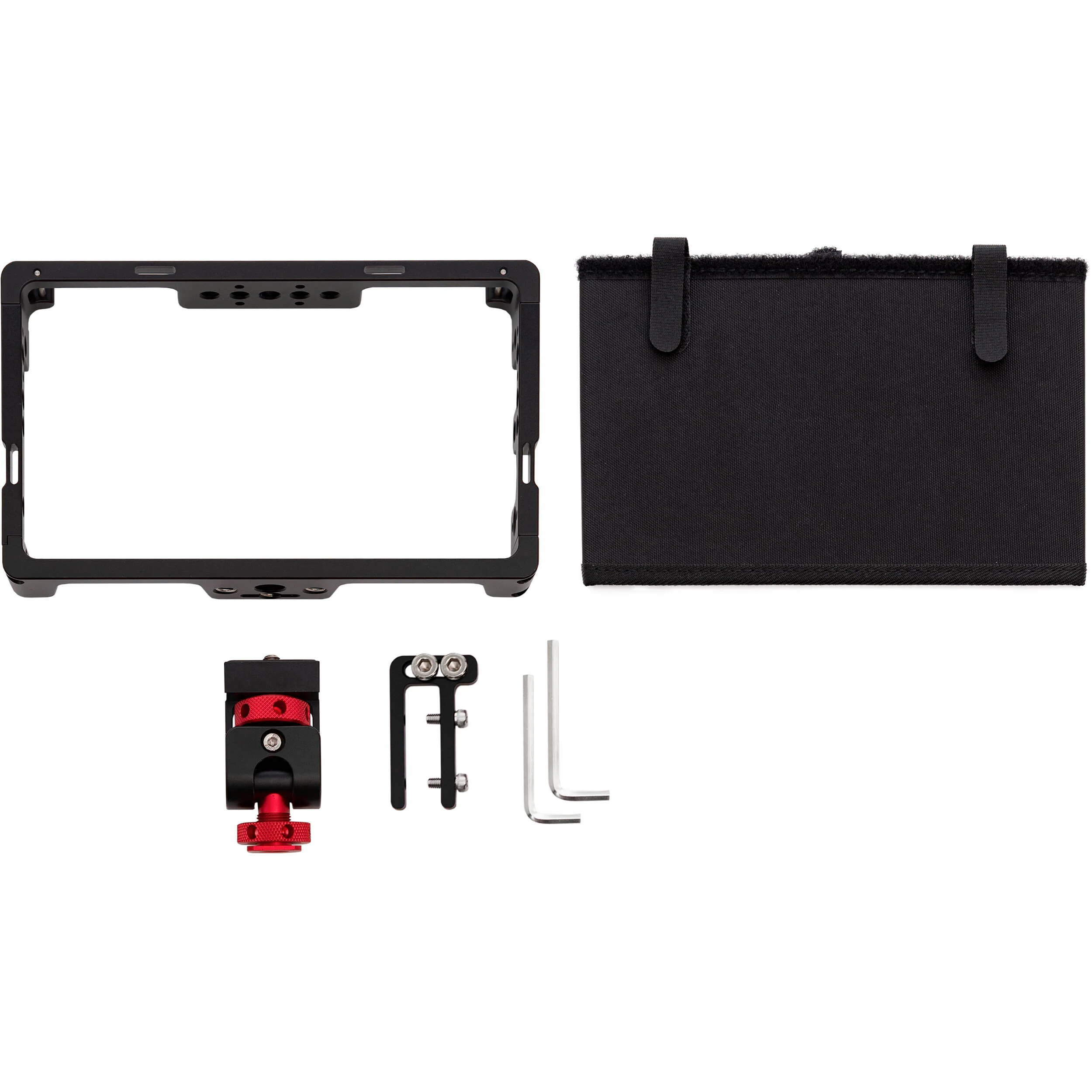
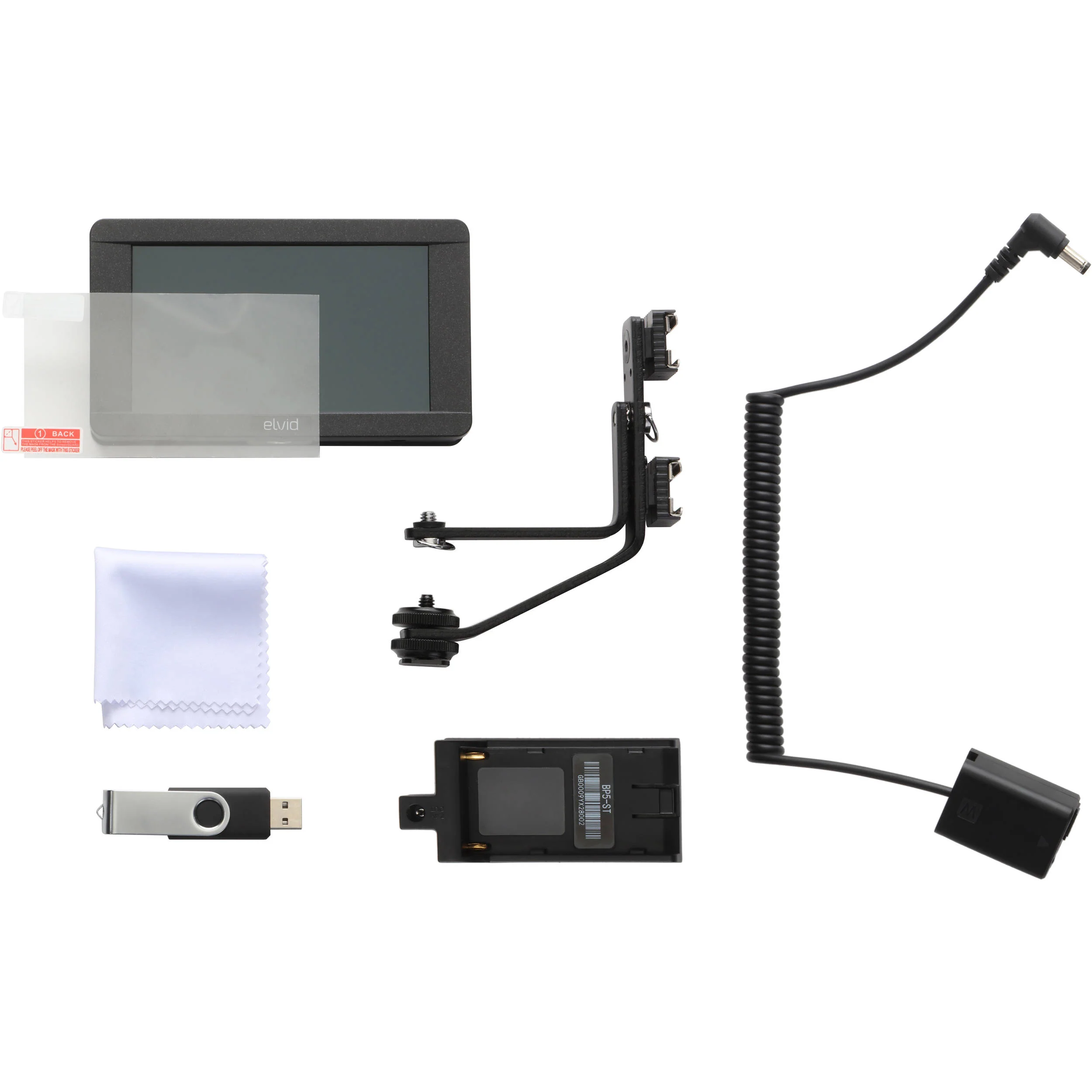
- Elvid 5" RigVision HDR On-Camera Touchscreen Monitor
- 3 x Screen Protector (One Installed)
- Swing Arm
- NP-FW50 Dummy Battery
- Cleaning Cloth
- USB Drive
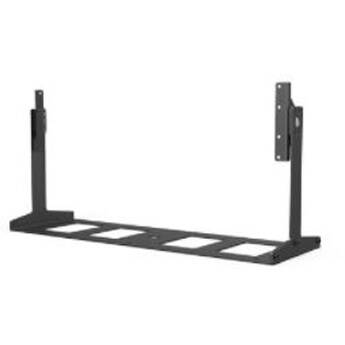
- L-Series Battery Plate
- Allen Key
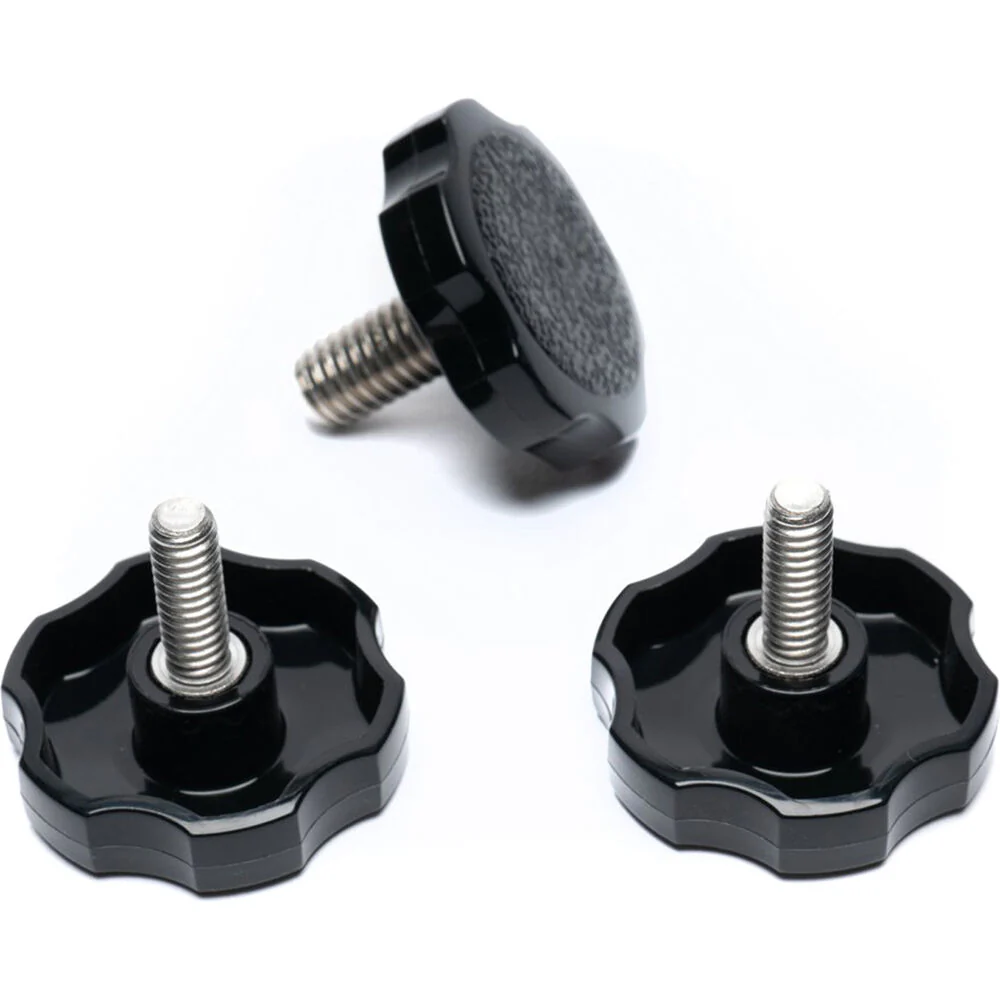
- Pack of Washers for Swing Arm
- Limited 1-Year Warranty
Guides & Manuals
- Description
- Function Buttons
- Touchscreen
- LUTs
- Functions
- Swing Arm
- Camera Control
Elvid RVM-5P-HDR Specs
| Panel Type | IPS-Type LCD |
| Display Size | 5.0" / 12.7 cm |
| Screen Resolution | 1920 x 1080 |
| Aspect Ratio | 16:9 |
| Viewing Angle | Horizontal: 160° Vertical: 160° |
| Touchscreen | Yes |
| Maximum Brightness | 1500 cd/m 2 |
| Contrast Ratio | 1000:1 |
| Dot Pitch | 0.01925 x 0.05775 mm |
| Bit Depth / Color Support | 8-Bit (16.7 Million Colors) |
| Real-Time LUT Monitoring | SDR, HDR |
| Image Controls | Check Field, Color Temperature Selection, False Color, Focus Peaking, H/V Delay, Histogram, Image Flip, OSD Flip, Pixel-to-Pixel Zoom, Scaling, Screen Markers, Underscan, Waveform, Zebra |
| Video | 1 x HDMI Type A (HDMI 1.4b) Input 1 x HDMI Type A (HDMI 1.4b) Output |
| Embedded Audio | HDMI: 2-Channel |
| Audio | 1 x 3.5 mm Headphone Output |
| Built-In Speaker | None |
| Power | 1 x 5.5 mm Barrel Output |
| Other I/O | 1 x USB 2.0 (USB Type-A) |
| Card Slot | None |
| Video Format | HDMI DCI 4K: 24 UHD 4K: 30/29.97/25/24/23.98 1080p: 60/59.94/50/30/29.97/25/24/23.98 720p: 60/59.94/50 576p: 50 480p: 59.94 480i 576i |
| DC Input Power | 7 to 24 VDC |
| Battery Type | 1 x L-Series (Interchangeable Mount) |
| Power Consumption | 12 W (Maximum) |
| Mounting | 1 x 1/4"-20 Female |
| Dimensions (W x H x D) | 3.25 x 5.6 x 1" / 8.26 x 14.22 x 2.54 cm |
| Weight | 7.7 oz / 218 g |
| Package Weight | 1.555 lb |
| Box Dimensions (LxWxH) | 9.3 x 6.7 x 3.05" |
All product and company names are trademarks™ or registered® trademarks of their respective holders. Use of them does not imply any affiliation with or endorsement by them.
Details & Craftsmanship
Every detail has been carefully considered to bring you the perfect product.
Details & Craftsmanship
Every detail has been carefully considered to bring you the perfect product.
Details & Craftsmanship
Every detail has been carefully considered to bring you the perfect product.
Details & Craftsmanship
Every detail has been carefully considered to bring you the perfect product.
Details & Craftsmanship
Every detail has been carefully considered to bring you the perfect product.
Details & Craftsmanship
Every detail has been carefully considered to bring you the perfect product.
Description
Elvid RVM-5P-HDR Overview
- 1 Description
- 2 Function Buttons
- 3 Touchscreen
- 4 LUTs
- 5 Functions
- 6 Swing Arm
- 7 Camera Control
Compact, lightweight, and well thought out for on-set work, the Elvid 5" RigVision HDR On-Camera Touchscreen Monitor can handle DCI and UHD 4K as well as 1080p, NTSC, and PAL, via its HDMI input. The monitor scales input video to its 1920 x 1080 IPS screen which provides you with a 1000:1 contrast ratio, 1500 cd/m² maximum brightness, and a touchscreen interface. A loop-though HDMI output means that whatever signal you input into the monitor is the same signal you get out, without any modifications or adjustments by the many viewing tools the monitor offers.
A physical sliding power switch and four programmable function buttons sit along the top of the monitor, as well as a scroll wheel with push-select. Whether in-line with a recorder or just for monitoring purposes, the advantage of 4K support does not end there. Focusing aids benefit greatly from the added image fidelity. Legacy workflows are still supported, with NTSC and PAL signals supported over HDMI. An included swing arm features a friction pivot that allows you to reposition the monitor without having to loosen and relock the mechanism. The built-in USB port allows for firmware updates and LUT import, and the included USB flash drive contains three LUTs.
Function Buttons
- F1 - Audio meters: Places an audio meter on the screen to monitor the level of incoming audio.
- F2 - Peaking: Adds a selectable color outline to any part of the image that is in focus.
- F3 - False color: Replaces the true colors of the image with a standard set of colors.
- F4 - HDR (HLG): Uses the display's luminance range to correctly display an incoming HLG signal. This function can be used in tandem with any applied LUT.
Touchscreen
LUTs
Functions
- Adjusts the aspect ratio of the incoming video signal and how it is displayed on screen. Select between Off (default), 80%, 90%, 15:9,1.33:1, 1.5:1, 1.85:1, 2:1, 2.35:1, and Custom.
- (On, Off) When turned on, the areas outside the guide are dimmed. The default setting is On.
- (On, Off) Puts a crosshair at the center of the screen. The default setting is Off.
- (Off, 1-10) Creates grids on screen with 1 to 10 subdivisions. The default setting is Off. Pressing the Exit button will disable any enabled guides, one at a time.
- Adjusts the monitor's brightness value from 0 to 100. The default setting is 50.
- Adjusts the contrast value of the on-screen image from 0 to 100. The default setting is 50.
- Adjusts the chroma value of the on-screen image. The default setting is 50.
- Adjusts the value of fine detail on the picture from 1 to 100 in increments of 10. The default setting is 30.
- Adjusts the tint value from 0 to 100. The default setting is 50.
- Presets are 5600, 6500 (default), 7500, 9300, and Manual. When User mode is selected, the values of red, green, and blue can be set manually from 0 to 255. Red, green, and blue are preset to 128.
- Adjusts the intensity of the backlight. Options are Low, Middle, and High (default).
- Adjusts the aspect ratio of the incoming video signal and how it is displayed on screen. Options are User, 16:9 (default), 15:9, 1.33:1, 1.5:1,1.85:1, 2:1, and 2.35:1. In User mode, height and width can be adjusted from 50 to 100. The default setting is 100.
- You can set the on-screen language to English (default) or Chinese.
- Set the length of time the on-screen menu is displayed. Select 5, 10 (default), 15, 20, 25, or 30 seconds, or Off (the menu will be displayed until the user exits the menu).
- Set the menu's level of opacity. You can adjust this setting to Low (default), Middle, High, or Off, with High being the most transparent. The default setting is Low, which makes the menu opaque.
- Recalls monitor settings.
- Resets the monitor to the factory default settings and removes any loaded LUTs.
- Displays Flip mode controls the orientation of the on-screen image. Flip the screen vertically or horizontally with the H Flip and V Flip options.
- OSD Flip mode controls the orientation of the on-screen display. Flip the menu vertically or horizontally with the H Flip and V Flip options.
- Places an icon in the upper-left corner of the screen that displays the remaining battery voltage. Select On (default) or Off.
- Sets the level of the internal cooling fan. Options are High, Medium (default), and Low.
- Turns the touch control feature on or off.
Swing Arm
Camera Control
In the Box
- Elvid 5" RigVision HDR On-Camera Touchscreen Monitor
- 3 x Screen Protector (One Installed)
- Swing Arm
- NP-FW50 Dummy Battery
- Cleaning Cloth
- USB Drive
- L-Series Battery Plate
- Allen Key
- Pack of Washers for Swing Arm
- Limited 1-Year Warranty
Guides & Manuals
- Description
- Function Buttons
- Touchscreen
- LUTs
- Functions
- Swing Arm
- Camera Control
Elvid RVM-5P-HDR Specs
| Panel Type | IPS-Type LCD |
| Display Size | 5.0" / 12.7 cm |
| Screen Resolution | 1920 x 1080 |
| Aspect Ratio | 16:9 |
| Viewing Angle | Horizontal: 160° Vertical: 160° |
| Touchscreen | Yes |
| Maximum Brightness | 1500 cd/m 2 |
| Contrast Ratio | 1000:1 |
| Dot Pitch | 0.01925 x 0.05775 mm |
| Bit Depth / Color Support | 8-Bit (16.7 Million Colors) |
| Real-Time LUT Monitoring | SDR, HDR |
| Image Controls | Check Field, Color Temperature Selection, False Color, Focus Peaking, H/V Delay, Histogram, Image Flip, OSD Flip, Pixel-to-Pixel Zoom, Scaling, Screen Markers, Underscan, Waveform, Zebra |
| Video | 1 x HDMI Type A (HDMI 1.4b) Input 1 x HDMI Type A (HDMI 1.4b) Output |
| Embedded Audio | HDMI: 2-Channel |
| Audio | 1 x 3.5 mm Headphone Output |
| Built-In Speaker | None |
| Power | 1 x 5.5 mm Barrel Output |
| Other I/O | 1 x USB 2.0 (USB Type-A) |
| Card Slot | None |
| Video Format | HDMI DCI 4K: 24 UHD 4K: 30/29.97/25/24/23.98 1080p: 60/59.94/50/30/29.97/25/24/23.98 720p: 60/59.94/50 576p: 50 480p: 59.94 480i 576i |
| DC Input Power | 7 to 24 VDC |
| Battery Type | 1 x L-Series (Interchangeable Mount) |
| Power Consumption | 12 W (Maximum) |
| Mounting | 1 x 1/4"-20 Female |
| Dimensions (W x H x D) | 3.25 x 5.6 x 1" / 8.26 x 14.22 x 2.54 cm |
| Weight | 7.7 oz / 218 g |
| Package Weight | 1.555 lb |
| Box Dimensions (LxWxH) | 9.3 x 6.7 x 3.05" |
All product and company names are trademarks™ or registered® trademarks of their respective holders. Use of them does not imply any affiliation with or endorsement by them.